> For the complete documentation index, see [llms.txt](https://dreamcanvas.gitbook.io/dreamcanvas/llms.txt). Markdown versions of documentation pages are available by appending `.md` to page URLs; this page is available as [Markdown](https://dreamcanvas.gitbook.io/dreamcanvas/readme/quickstart.md).
# Quickstart
## Windows
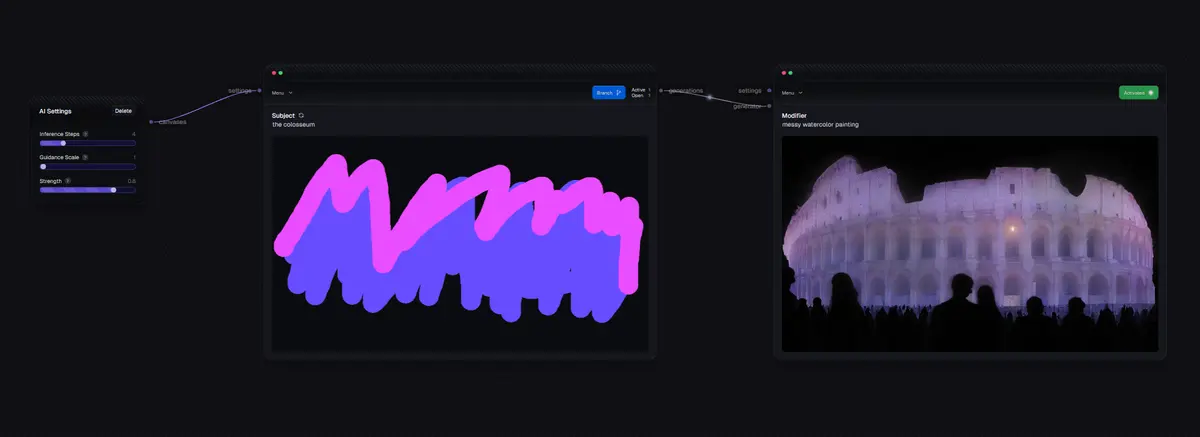
The **window** is the cornerstone of DreamCanvas' functionality. There are Generator windows and Generation windows.
***
### Generators
\
\&#xNAN;*A generator window in action.*
Generator windows serve as the main workspace for users. These windows contain the following features:
#### **The Canvas**
The canvas is where users create their sketches.
#### **The Prompt**
The prompt defines the subject of the sketch. While the app generates random prompts, users also have the option to input custom ones.
#### **The Randomize Button**
This button allows users to shuffle and generate new prompts at random.
***
### Generations
\
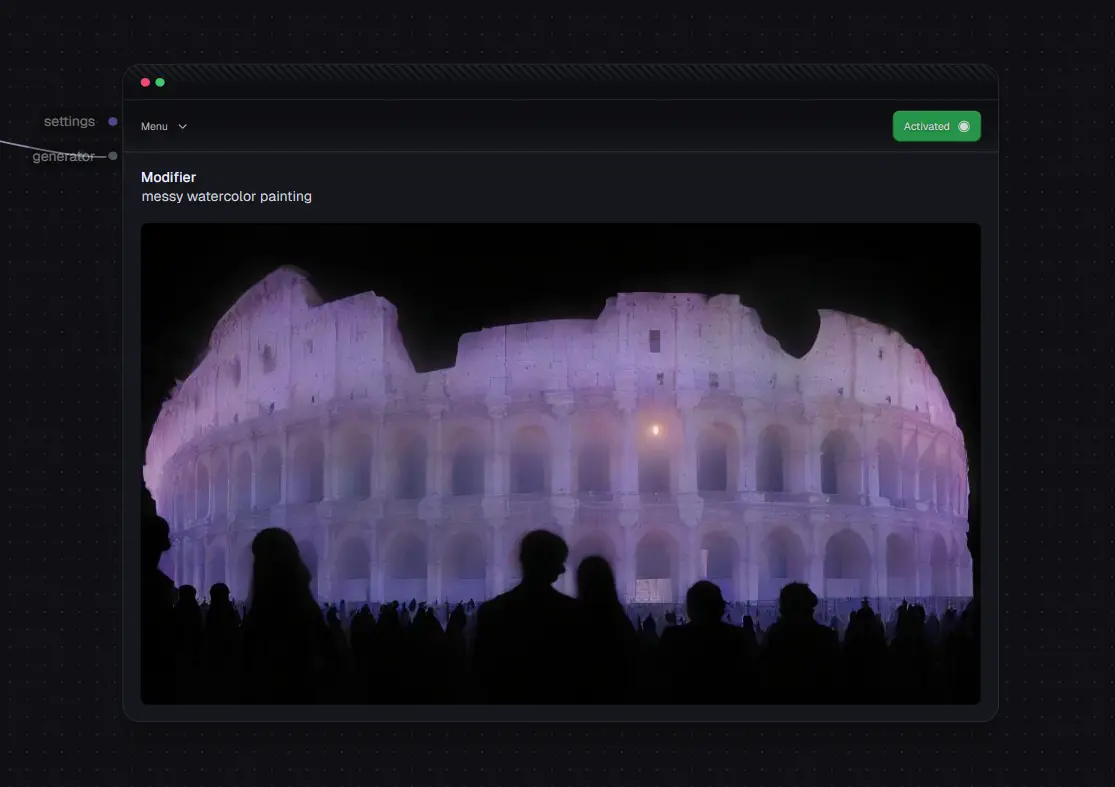
\&#xNAN;*A closer look at a generation window.*
Generation windows are derivatives of generator windows. They display the final artwork generated using the sketch and prompt from the generator. These windows feature:
#### **The Output Image**
The generated artwork based on the parent generator’s sketch and prompt.
#### **The Activate Button**
Users can select which generation window to actively work with. A generator can only be linked to one active generation window at a time.
#### **The Modifier Prompt**
This allows users to influence the style of the generated artwork. The default is set to "watercolor," but users can input custom styles.
***
### Settings Nodes
\
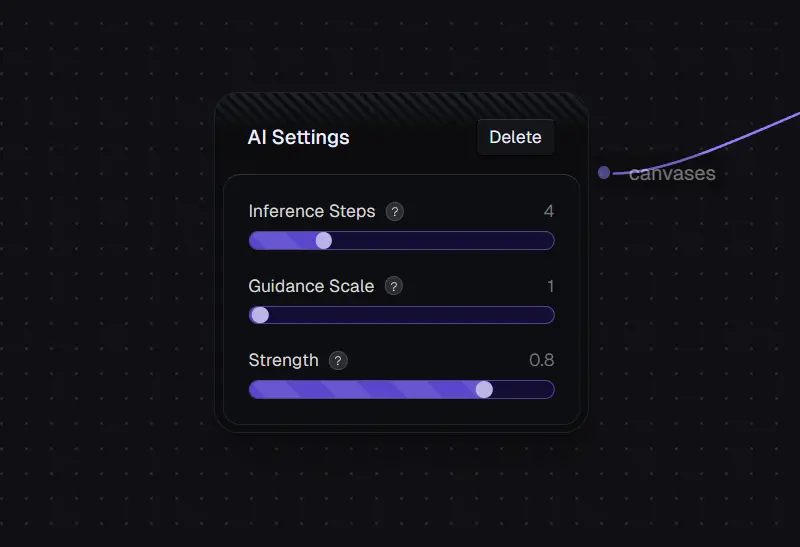
\&#xNAN;*A settings node configuration.*
Settings nodes provide controls to fine-tune the AI parameters that influence generators and generations. Here are the adjustable parameters:
#### **Inference Steps**
This determines the level of detail in the artwork. Values range from 1 to 12; higher values result in more detail but take longer to process.
#### **Guidance Scale**
This slider, ranging from 0 to 16, dictates how strictly the AI adheres to the prompt. Higher values increase confidence in the output.
#### **Strength**
This parameter, ranging between 0 and 1, governs how closely the final artwork resembles the initial sketch. Higher strength grants the AI more creative flexibility.
***
### Connections
\
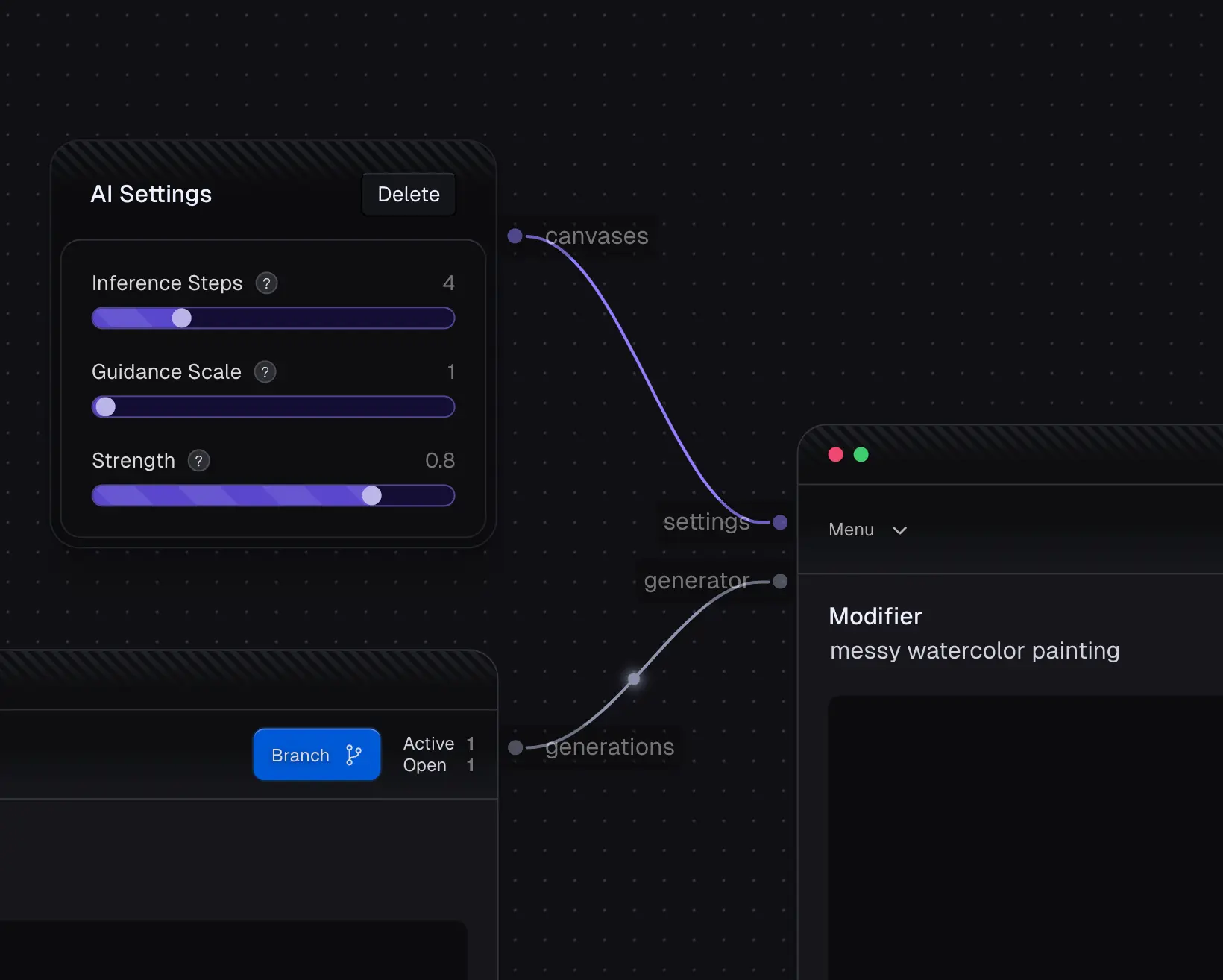
\&#xNAN;*Illustration of multiple connections.*
Connections link components of the app, with two key types:
* **Generator-to-Generation Connections**: Each generation window is tied to a single generator.
* **Settings Node Connections**: These can connect to either a generator or a generation.
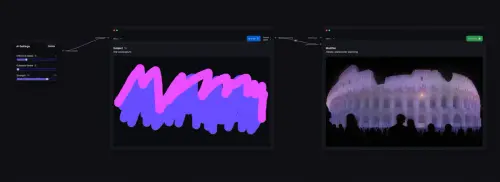
If a settings node connects to a generator, its adjustments affect all related generations. However, directly connecting a settings node to a specific generation allows it to override the generator's settings for that generation.
***
\
\&#xNAN;*A functional example of settings and connections.*
By linking these components effectively, users can create detailed, styled, and highly customized artworks tailored to their preferences.